Turning a long video into a YouTube Short starts with a small editorial decision: what can a new viewer understand without watching the whole original? The answer might be a strong passage you clip, or an idea you explain again with new narration and visuals. Those are different workflows, and choosing the right one avoids disappointment later.
This guide explains both approaches, then walks through the fresh-narration workflow supported by RavenCut. The examples are planning exercises, not measured channel results or a claim that the product automatically finds highlights in an existing recording.
Choose between clipping footage and rebuilding an idea
Start by deciding what you want to preserve. If the speaker's delivery, reaction, or demonstration is the value of the moment, keep the original performance and use a suitable clipping editor. If the explanation matters more than the original recording, a new narrated Short may be the better fit.
| What you want | A suitable workflow | Important limitation |
|---|---|---|
| Preserve a speaker's original delivery | Select a passage and edit the source footage | Reframing and edits must preserve meaning. |
| Explain a lesson from your own long video | Write a self-contained script with supporting scenes | Do not rely on context that is absent from the Short. |
| Adapt an article or research notes | Develop new narration and a visual sequence | Verify facts and permissions; a URL alone does not grant reuse rights. |
RavenCut's idea-and-source-material workflow supports building a fresh narrated video. Do not choose it on the assumption that it includes active-speaker tracking, automatic highlight detection, or batch extraction of clips. The current workflow is scripting, narration, scenes, rendering, and optional YouTube uploading.
For a fuller view of that production process, see RavenCut's idea-to-upload workflow and its public output examples before choosing a production method.
Find one complete idea, not the loudest sentence
Review your long-form material and note the passages that answer a specific question. Look for a claim with an explanation, a demonstration with a result, or a distinction the viewer can use. A dramatic sentence may be a good opening, but it is not a complete Short by itself.
Imagine that your original video explains how to plan a first faceless YouTube channel. It covers niche selection, research, scripting, media, and publishing. Instead of compressing all five topics into a tiny summary, choose one useful lesson: a niche is not the same as a video idea.
Your Short can then answer: "Why is 'history' too broad for a first video brief?" The viewer gets a complete point, and the long video can provide the wider process.
Use this selection checklist:
- Can the point be stated in one sentence?
- Can you preserve enough context for a new viewer?
- Do you have an explanation or example, not only an opinion?
- Does the ending answer the opening?
- Is the material yours to use or something you have permission to adapt?
If the answer is no, choose another passage or develop the idea further. There is no dependable number of worthwhile Shorts in every long video.
Rewrite the opening for a viewer who has no context
A long video can rely on an introduction the audience has already watched. A Short cannot. Replace references such as "the second thing I mentioned" or "this is why it matters" with the actual subject.
Here is a small before-and-after exercise:
| Source-style opening | Self-contained Short opening |
|---|---|
| As I said earlier, you need to narrow this down | History is a niche. "Why do abandoned cities remain standing?" is a video idea. |
| Here is the next step | Before you write a script, decide which question the video will answer. |
| This mistake ruins everything | A broad topic makes it difficult to choose what belongs in your first script. |
The revised lines are more specific without making exaggerated promises. They name the subject and show the distinction immediately.
For the rest of the Short, try this structure:
Opening: Name the viewer's problem or question.
Explanation: Give the distinction or principle.
Example: Show one concrete before-and-after.
Conclusion: Answer the opening and give the next useful action.
This is a writing template, not a fixed retention formula. Some ideas need a demonstration before the explanation; others need context before the contrast makes sense.
Example: turn a channel-planning lesson into scenes
Our example Short explains how to move from a niche to a video idea. The following is an illustrative outline, not a full generated narration:
| Beat | Narration direction | Visual direction |
|---|---|---|
| Problem | A broad niche does not tell you what the next video should explain | A broad topic label or relevant general illustration |
| Contrast | History is a category; an abandoned-city question is a specific idea | A meaningful contrast between the category and the question |
| Method | Choose one question and write the answer in one sentence | Notes or an appropriate explanatory visual |
| Test | Check whether every scene helps answer that question | Relevant supporting visuals rather than unrelated attractive media |
| Ending | Write the viewer question before you write the full script | A clear recap of the same question |
Use this table as a planning aid. Review the actual media produced for each scene; do not assume every suggested graphic or layout is an automatic product feature.
If your Short names a real location, the visual should identify that location correctly. If it explains a general principle, illustration may be enough. Relevance matters more than whether the media looks cinematic in isolation.
Set up the narrated Short in RavenCut
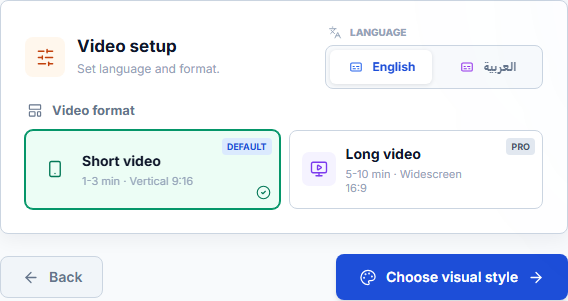
Open Create Video, choose the relevant niche, and continue to Video setup. Select the narration language and the Short video format. The current interface describes this as vertical 9:16, with a 1-3 minute production range.

Actual application interface with a demonstration account, not a customer performance screenshot.
Choose a visual style that fits the explanation, then select Write or Paste Text in the content step. Use Source material if you are adapting notes from your long video. Use Finished script if you have already written the exact narration and want the wording kept.
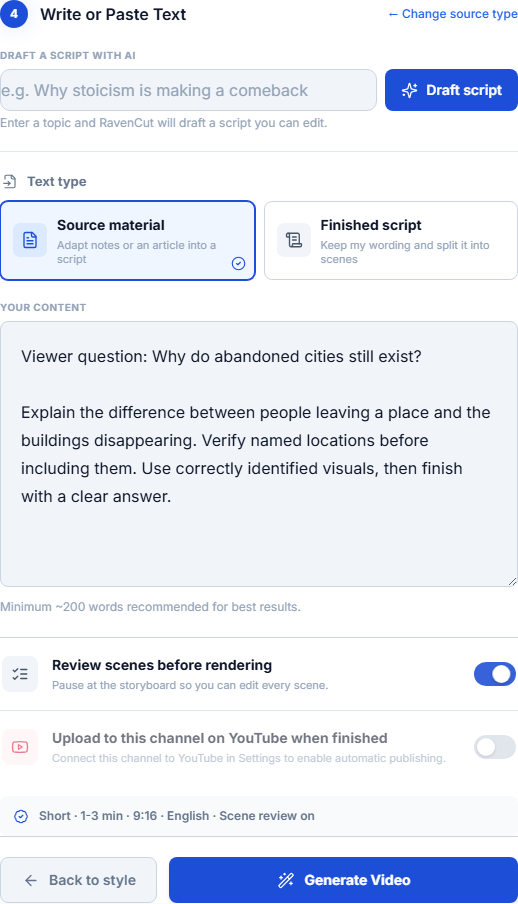
Demonstration input. The screenshot shows the real form; no video was generated for this walkthrough.
Do not paste a transcript full of irrelevant introductions, sponsor messages, or repeated summaries and expect a focused lesson to emerge unchanged. Extract the material relevant to this particular Short, add your viewer question, and keep the facts or quotations you need to preserve clear.
Switch on Review scenes before rendering if you want to inspect the storyboard. Keep Upload to YouTube when finished off when you want to watch the exported MP4 before deciding to publish. These settings control different stages: storyboard review is not a final post-render approval.
Make the video understandable on a phone
For a new narrated video, check each scene in the vertical frame. For a clip, check the original footage after reframing. In both cases, the visual information that carries the explanation should remain visible.
A wide chart may become unreadable after cropping. A face can remain centered while a demonstration disappears from the frame. A caption can cover the very object the narration is describing. Solve these problems by changing the composition or choosing a different visual, rather than accepting the crop simply because it fills the screen.
Watch on a phone, or at a comparable preview size, and ask:
- Can the important detail be identified immediately?
- Is the text readable without pausing?
- Do captions preserve names, numbers, and meaning?
- Do cuts or motion interrupt a sentence's explanation?
- Is background audio competing with the voice?
There is no universal caption animation or safe-zone percentage that guarantees a good result. Check the actual platform interface and the actual exported video.
Confirm current YouTube requirements and media rights
YouTube's three-minute Shorts guidance describes square or vertical uploads of up to three minutes as Shorts for standard channels under its current upload-date rules. The maximum is a limit, not a target. Use only the time your explanation needs.
Pay particular attention to audio rights: YouTube states that a Short over one minute with an active copyright claim can be blocked. Do not assume a music track is permitted just because it appears in another creator's video. Verify the license and any attribution requirements before upload.
RavenCut can help assemble a video, but it does not grant rights to third-party material. If your source is someone else's recording or article, check permissions and contribute your own useful explanation instead of simply reproducing it.
Link the Short to a relevant long video
If the Short introduces a fuller explanation already on your channel, YouTube's Related Video feature can connect the two. This is configured in YouTube Studio after uploading and requires eligible account access. Follow the current instructions; do not assume RavenCut's uploader sets it automatically.
The connection should be useful to the viewer. A Short about narrowing a first-video topic can point to a channel-planning guide. Sending it to an unrelated upload adds friction rather than completing the explanation.
Keep the title equally specific. For our example, "Your YouTube Niche Is Not a Video Idea" describes the lesson better than "The One Secret Every Creator Must Know."
Troubleshoot before publishing
| Symptom | What to review |
|---|---|
| The opening makes sense only after watching the long video | Name the subject and restore the missing context. |
| The Short tries to cover the entire original video | Choose one lesson and save the other lessons for separate, worthwhile ideas. |
| The conclusion introduces another topic | Return to the opening question and finish its answer. |
| The visuals seem unrelated to the voice | Review each scene against the specific sentence being narrated. |
| The clip changes what the speaker meant | Restore necessary context or choose a different passage. |
| The title promises more than the video delivers | Rewrite the promise around the actual explanation. |
Learn from the finished upload
After publishing, use the analytics available for your own channel to compare similar videos. Keep a note of the idea, opening, length, and production changes so you know what you changed. Treat small samples cautiously rather than turning one result into a universal rule.
AI assistance and repurposing do not guarantee monetization or distribution. YouTube's channel monetization policies still apply. The useful goal is a Short that makes sense, adds value, and represents your original meaning accurately.
Before the next render, check your script, scene relevance, narration, captions, title, channel destination, and visibility. Start a narrated Short in RavenCut when you have one complete idea ready, or view the public examples to understand the output format.