"Text to video" can describe very different products: a narrated explainer assembled from scenes, an avatar speaking your script, a tool that clips an existing recording, or a model that generates a short cinematic shot. A useful comparison starts with your production job, not a ranked list of logos.
This page compares the documented workflows of RavenCut, Pictory, Fliki, and Invideo for creators starting with narration or source material. RavenCut publishes this comparison. It is not an independent benchmark, and we have not run the same output test in every product. Competitor observations below come from their official documentation reviewed on October 11, 2026. Availability, limits, and interfaces can change.
Define the video you need before comparing tools
For a narrator-led explanation, the script supplies the structure. Visuals illustrate the spoken point; captions and audio help the viewer follow it. You may not need an avatar, a complex footage editor, or a premium cinematic generation model.
Write down four decisions before evaluating a subscription:
- Input: Do you have finished narration, research notes, a blog post, or recorded footage?
- Review: Must you preserve the exact script? Can you inspect scene media before rendering?
- Output: Do you need a vertical Short, a widescreen explanation, or detailed editing of original footage?
- Publishing: Do you want an MP4 to review first, or an explicitly authorized upload workflow?
A tool that fits a different job is not necessarily worse. It may simply be solving something you do not need. For example, keeping a speaker's original performance requires footage editing; rebuilding an explanation from notes requires a new narration workflow.
Compare documented inputs and review controls
This matrix describes workflows, not comparative quality, speed, savings, or a claim that every feature is included on every subscription tier.
| Product | Documented starting point | Review checkpoint | Evidence and limitation |
|---|---|---|---|
| RavenCut | Idea, source material, or finished narration | Optional scene review before rendering; inspect the completed download before manual publishing | Current RavenCut interface and production validation. Turn automatic uploading off if you want final-video approval first. |
| Pictory | Script or article URL | Text summary and storyboard editing, then preview and MP4 export | Official script-to-video workflow. Check the intended input mode and current plan. |
| Fliki | Pasted script; separate blog workflow documented | Optional detailed script review, plus scene editing and export | Official text/script tutorial. Its interface and available models can change. |
| Invideo | Product-specific workflows; its Editor can use uploaded footage with a script or brief | Refine an assembled first cut on the timeline | Official Editor first-cut guide. Do not treat Editor, generative modes, and narrated production as identical jobs. |
The last row is deliberately specific. Invideo's wider product includes more than the uploaded-footage editing example cited here. Check the exact mode you intend to use rather than assuming a general brand feature page describes the same workflow as RavenCut.
What each documented workflow emphasizes
RavenCut: narration, scenes, and an optional YouTube destination
RavenCut brings script preparation, narration, scene media, captions, rendering, and optional channel uploading into one production workflow. Its text controls distinguish Source material from Finished script; the latter is intended for narration you have already written.
The current setup offers English and Arabic, vertical Shorts and widescreen Long videos. Long creation requires a paid plan. It is not a promise of avatar generation, precise timeline editing of arbitrary uploaded footage, or a cinematic video-model shot for every scene.
If your priority is a narrator-led explanation, inspect RavenCut's real examples and the practical production guide. Decide whether the output and review controls fit your work before subscribing.
Pictory: an explicit text-to-storyboard sequence
Pictory's official workflow moves from a script or article source through text review, storyboard changes, music and voiceover choices, then preview and MP4 download. The documented storyboard step allows changing the selected visuals and using your own assets. That makes the placement of its review steps relevant to a script-ready creator. This is a description of Pictory's advertised workflow, not a hands-on quality comparison. Source: Pictory script-to-video.
Fliki: scene-level script and media controls
Fliki's text-to-video tutorial documents script input, automatic or manual scene division, format and media choices, narration, captions, detailed-script review, and final editing and export. Its September 2026 v5 announcement also describes separating spoken narration from visual directions in a pre-generation review. We have not tested that interpretation with the example below. Check the active interface and tier rather than relying on descriptions of an older release. Sources: Fliki tutorial, Fliki v5 announcement.
Invideo: identify the specific editing job
Invideo's September 2026 Editor guide describes assembling a first cut from your uploaded footage using a brief or script, then adjusting it on the timeline. That is relevant when the original recording matters, but it is not the same test as building fresh narration with stock or generated scene media. Check the mode, materials, and editing controls required for your intended project. This page does not rank Invideo's other production modes. Source: Invideo Editor first-cut guide.
A real RavenCut setup, with its limitations visible
Here is RavenCut's actual setup interface, rendered with demonstration data. The screenshot is product evidence, not a finished-video quality score.
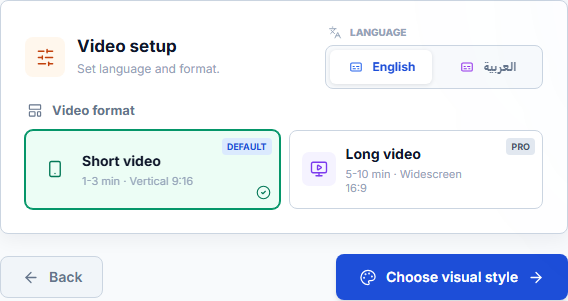
For a finished script, continue to the text step and select Finished script. Turn on Review scenes before rendering when you want to inspect the scene plan. If you need to watch the complete MP4 before publication, turn off Upload to YouTube when finished.
The current Free plan includes one lifetime video, with Shorts only. Free finished narration is limited to 380 English words or 320 Arabic words. Paid plans allow Long videos as well as Shorts, subject to current credits and limits. See current RavenCut pricing; these are not equivalent units to another product's generation credits.
No tool selection removes the need to check subject identity, narration pronunciation, captions, and permissions. A generic stock image can look plausible while showing the wrong country or person. A generated visual is an illustration, not automatically evidence of a real event.
Use one consistent sample instead of comparing marketing examples
If you try multiple products, use the same original script and intended output. The sample below is a small authored test brief, not a benchmark we have already performed.
A desk reset should make your next task easier to start. First, decide what that task is. Leave its tools within reach and move unrelated objects away from the working area.

Then clear the small interruptions: loose cables, old notes, and browser tabs you no longer need.

Finish by leaving a clear starting point, such as an open document or a notebook with the next question. When you sit down again, you should know which step comes first.
Use a vertical narrator-led video, request the same language, and avoid adding an avatar or cinematic generation requirement in only one product. If a product cannot support the job you specified, record that mismatch rather than quietly changing the test.
| Check | Record what actually happened |
|---|---|
| Script handling | Was spoken wording preserved? Were any visual notes narrated? |
| Media relevance | Did the visuals depict the task, or only a generic office? |
| Review control | Could you inspect the text and media before the expensive step? |
| Voice and captions | Were words intelligible and subtitles synchronized and readable? |
| Revision | What changed when you corrected one irrelevant scene? |
| Export | Was the intended orientation available, and what restrictions applied? |
| Usage | What did the original generation and the correction consume? |
Separate observations from opinions. "The caption covered the notebook" is a reproducible note. "This tool is the best" is not. Review the output on a phone as well as a desktop before judging a Shorts workflow.
Compare the billable unit, not only the headline price
Minutes, credits, renders, premium assets, and model generations are not interchangeable. A longer narration and a scene regenerated with a premium model may affect usage differently. Do not calculate "videos per month" without the intended format and the provider's current rules.
Before paying, check the product's own checkout and help documentation for:
- Monthly versus annual billing and the actual charge today.
- Which unit is included and whether different models use different amounts.
- Maximum duration and export resolution for your intended format.
- Watermarks and the terms for your planned use of voices and media.
- Whether revisions, failed jobs, and additional exports consume usage.
- Seats, storage, and any separate product or add-on subscription.
Use the current official pages: RavenCut, Pictory, Fliki, and Invideo. These links are places to verify an offer, not evidence that the plans contain equivalent allowances. We do not reproduce competitor prices or calculate an unsupported "cheapest" winner here.
Make a decision based on your actual production path
Choose a shortlist by workflow fit, then inspect a representative export and the editing steps it took to reach it. A creator with a checked narration may value script preservation and scene review. A creator with original footage may need a timeline. A creator requiring an avatar should evaluate that capability explicitly rather than expecting it from every script-to-video product.
RavenCut is worth evaluating when your work is narrator-led and you want the production steps together with optional YouTube uploading. That is a product-fit statement, not a claim that it beats every competitor or guarantees a successful channel.
Originality, accuracy, audience value, and rights remain your responsibility. No comparison on this page establishes guaranteed views, monetization approval, or earnings. Bring a real script, try the workflow, and use the finished video to decide what suits your channel.