You do not need to appear on camera to make a useful YouTube video. You do need a clear idea, a story worth listening to, and visuals that explain the same thing as the narration. A faceless format changes how you present the content; it does not replace those decisions.
This guide walks through a first narrated explainer in RavenCut, from a topic and research notes to a reviewed video. The example topic is "Why abandoned cities still exist." The planning examples are illustrative, not a verified history script or a claim about the performance of a finished video.
What you need before opening the editor
Prepare three things: one viewer question, your notes, and the answer you want the viewer to understand. A large collection of unrelated facts is harder to turn into a coherent video than a small set of notes with a clear point.
For our example, the question is not "What are some abandoned cities?" It is "Why can a city remain standing after people leave?" That distinction changes the whole production: the script needs to explain abandonment and preservation, not merely show dramatic locations.
Use this brief as a starting template:
Viewer: A curious beginner, not a specialist.
Question: Why can an abandoned city remain standing?
Takeaway: People leaving and structures disappearing are different processes.
Evidence: Dated sources for each real location we name.
Tone: Clear and thoughtful, without invented mystery.
Visual rule: Identify real places correctly; label illustrative material.
Ending: Answer the opening question rather than introduce a new one.
When your topic names a person, city, company, or recent event, keep the spelling and source beside the relevant note. That gives you something concrete to check when reviewing the script and visuals.
Choose your niche, language, and video format
Open Create Video. Choose the niche that most closely fits the subject. If a connected channel already supplies the relevant niche, check that it matches this particular project rather than changing it unnecessarily. The niche picker also supports creating a custom niche.
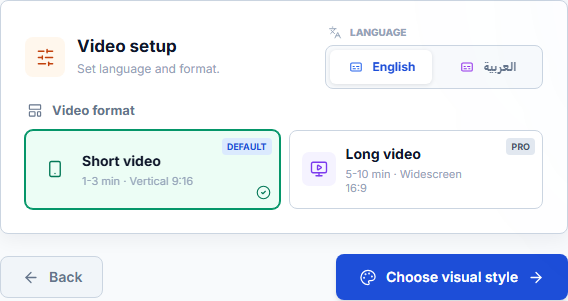
Continue to Video setup, where language and format are separate choices. The current interface offers English and Arabic. Choose the language you intend to narrate in before drafting the script so the wording and captions are prepared for that audience.

Actual RavenCut interface, captured with a demonstration account. This is a product walkthrough, not a customer result.
Choose a format based on the explanation you want to deliver:
| Format | A useful starting point | What to check |
|---|---|---|
| Short, vertical 9:16 | One focused question or distinction | Can the narration deliver a complete answer without rushing? |
| Long, widescreen 16:9 | A question needing context, multiple examples, or a fuller explanation | Does each section add information rather than repeat the hook? |
The current setup describes Short videos as 1-3 minutes and Long videos as 5-10 minutes. Long videos require a paid plan. These are production ranges, not promises that every input will produce the same duration. Review the current plan and credit information before starting.
For a first abandoned-cities video, we would choose a focused Short: one explanation, with a verified location as a supporting example if the research is ready. A longer video would need a deeper brief, not simply a longer version of the opening paragraph.
Select a visual style that fits the story
Choose the visual style after setting the format. Think about what the viewer needs to understand, not only which thumbnail looks attractive in the style picker.
A historical explainer may use illustration for a general concept and correctly identified imagery for a real location. A cartoon story can be consistently illustrated. A current-news video naming a real person or place needs much more careful identification: an unrelated stock portrait or skyline can mislead viewers even when it looks professional.
Write one visual instruction into your notes. For this example: "Use identifiable images for named locations. Use neutral illustration for general explanations. Do not label a generic empty street as a specific city."
Use Source material or Finished script deliberately
In the content step, Write or Paste Text gives you two different input modes:
- Source material: use this for notes or an article you want adapted into narration. The wording is not final.
- Finished script: use this when you have already written the narration and want your wording kept while it is split into scenes.
If your input is only a topic, Draft script can help you develop it. Still read the result before treating it as finished. For a source-based video, include enough context to distinguish facts, interpretation, and questions that remain unanswered.
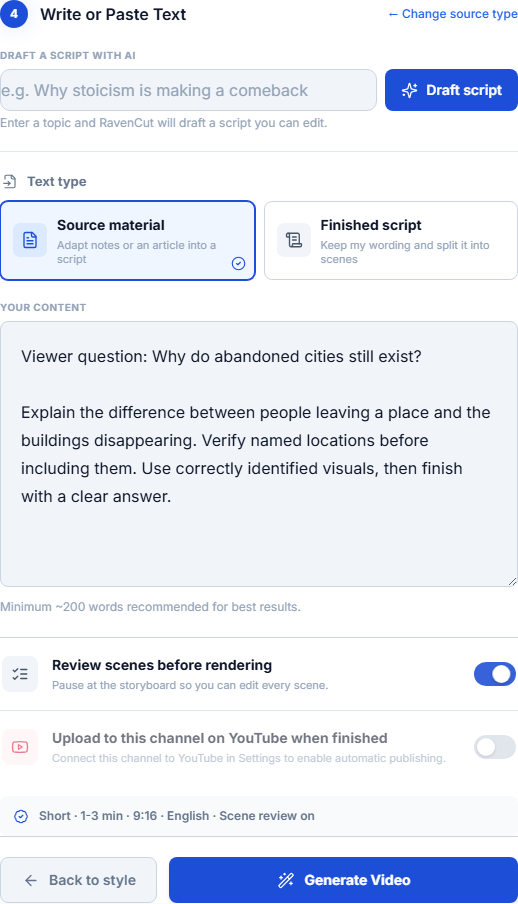
Demonstration input in the actual creation form. No video was generated to capture this screenshot.
Here is how to make a vague instruction more useful:
| Weak input | More useful direction |
|---|---|
| Make a viral video about abandoned cities | Explain why buildings can remain after residents leave. Answer the question without inventing a mystery. |
| Add amazing facts | Include only facts supported by the attached notes. Keep exact names and dates. |
| Make it dramatic | Use a clear opening contrast, then explain it calmly with a specific example. |
Do not paste text containing navigation menus, subscription prompts, repeated headings, or unrelated comments from a web page. Clean notes make the actual subject easier to identify. Keep material within the limits shown in the form, especially when using Finished script on the Free plan.
Turn the brief into a script with a clear progression
Before rendering, check the script as an explanation. A useful sequence for our topic is:
- Opening question: the place looks like a city, but the people have left. Why are the buildings still there?
- Distinction: explain that population change and physical deterioration are separate questions.
- Verified example: describe one researched location and the documented reason residents left.
- Explanation: show how the conditions affecting the buildings differ from those affecting the population.
- Answer: return to the opening question and summarize the explanation.
The third and fourth steps need actual research before they become factual narration. Do not fill them with an invented date or explanation just to complete the outline.
For comparison, an opening such as "These cities hide terrifying secrets you won't believe" promises a different video. Unless your research really supports that premise, it creates an expectation the script cannot deliver. A more accurate opening is: "The streets are empty, but the buildings are still standing. An abandoned city does not disappear when its last residents leave."
Read the draft aloud. Remove sentences that restate the previous sentence without advancing the explanation. Replace vague references such as "this place" with the location's name when the viewer might otherwise lose track. If a paragraph only says that something is fascinating, explain why it matters or remove it.
Plan scenes around meaning, not one image per sentence
A script is an audio story; a scene plan explains what the audience sees while hearing it. Each visual should support the spoken point. A new sentence does not always require a new image, and a new image does not automatically make the video more interesting.
Here is an illustrative scene map for the same topic:
| Narration purpose | Visual direction | Review question |
|---|---|---|
| Establish the question | An empty street or clearly labeled illustration | Is it presented as a general example or a verified location? |
| Introduce a real place | Correctly identified image of that place | Does the source actually identify this location? |
| Explain the reason people left | Relevant supporting visual or simple explanation graphic | Does the image imply an event the research does not establish? |
| Explain why structures remain | Appropriate detail, alternate view, or illustration | Does it help explain the sentence rather than merely fill time? |
| Deliver the conclusion | Return to the opening visual idea | Does the ending answer the original question? |
This is a planning template, not a claim that RavenCut automatically produces every graphic in the table. Review the media actually supplied for your project.
Switch on Review scenes before rendering when you want the pipeline to pause at the storyboard. For a first project, that pause is useful: you can check the script and media before committing to the final render.
Review narration, captions, and the finished video
Check names and specialist terms in the narration, especially if the script switches languages. Read captions for accuracy and listen for pronunciation, unnatural pauses, or a sentence that sounds unfinished. Narration that is clear in isolation can still feel rushed when combined with quick scene changes.
Watch the exported video once for meaning and once for presentation. In the first pass, ask whether a new viewer receives a complete answer. In the second, check media identity, caption readability, movement, cuts, and the balance between narration and background audio.
Use specific correction notes: "The narration names a city but the image is unidentified," or "The caption hides the important building detail." Specific notes are easier to act on than "make it better."
Publish only after checking the destination and visibility
You can create and download a video without connecting YouTube. If you do connect a channel, verify the destination and choose the intended visibility before uploading.
In the creation form, Upload to YouTube when finished and Review scenes before rendering are different settings. Scene review pauses before the render; it is not a final approval step after watching the MP4. If you want to inspect the finished video before it goes live, turn automatic uploading off and publish after your review.
Choose a title that describes the explanation you actually deliver. "Why Abandoned Cities Can Remain Standing" fits our example better than a title promising a list of the world's most mysterious locations. Check the thumbnail against the same promise.
Common first-project problems
| Problem | Better next step |
|---|---|
| The script jumps between unrelated facts | Narrow the brief to one question and reorder the explanation before rendering. |
| The visuals look good but show the wrong place | Check identity and relevance in scene review; do not use appearance as proof. |
| The narration is too short to explain the topic | Add missing context or a researched example, not repeated introductory sentences. |
| The video feels slow | Remove repetition and check scene pacing; do not speed up essential narration until it becomes hard to follow. |
| The script reads like someone else's article | Add your own explanation and perspective, while respecting the source material's rights. |
Can a faceless channel be monetized?
Faceless presentation alone does not determine monetization. YouTube's channel monetization policies address originality, reused material, and repetitive or mass-produced content. RavenCut helps with production; it cannot guarantee approval, views, or earnings. Check the rights to your sources and media, and judge the channel by the value it gives viewers.
Your first-video checklist
- One question, with a clear answer in the ending.
- Verified facts and correctly identified people or places.
- A script you have read aloud and scenes you have reviewed.
- Narration and captions checked in the exported video.
- A title and thumbnail that match the actual content.
- The correct upload destination and visibility, with publishing under your control.
Ready to try the workflow? Start with your own idea in RavenCut, or inspect the public video examples before choosing your first topic.