Your script already has a point of view. The next job is turning that narration into scenes a viewer can follow. RavenCut's script-to-video workflow combines narration, supporting visuals, captions, rendering, and optional YouTube uploading. You still decide whether the story, media, and final video are right for your channel.
This is a narrator-led production workflow, not a promise to create an avatar presenter or a cinematic video-model clip for every sentence. It suits explainers, commentary, educational Shorts, and stories where narration carries the meaning. If you need precise footage editing, a recorded interview, or an on-screen presenter, evaluate a tool designed for that job instead.
A finished script is different from source material
In RavenCut's Write or Paste Text step, choose the text mode deliberately. The same paragraph can mean two different things depending on that choice.
| What you have | Select | What the text means |
|---|---|---|
| Narration you have already written and want to keep | Finished script | This is the spoken content to divide into scenes. |
| Research notes, an article, or an unfinished explanation | Source material | This is input for a new script, not final narration. |
Use Finished script when wording matters: for example, you have checked a technical explanation, written your own commentary, or adapted your own blog post. Use Source material when the input still needs an opening, structure, and conclusion.
Remove web navigation, unrelated comments, repeated headings, and subscription prompts before pasting source text. Separate production notes from spoken narration. Plain narration is the clearest finished-script input; do not depend on arbitrary screenplay formatting being interpreted correctly.
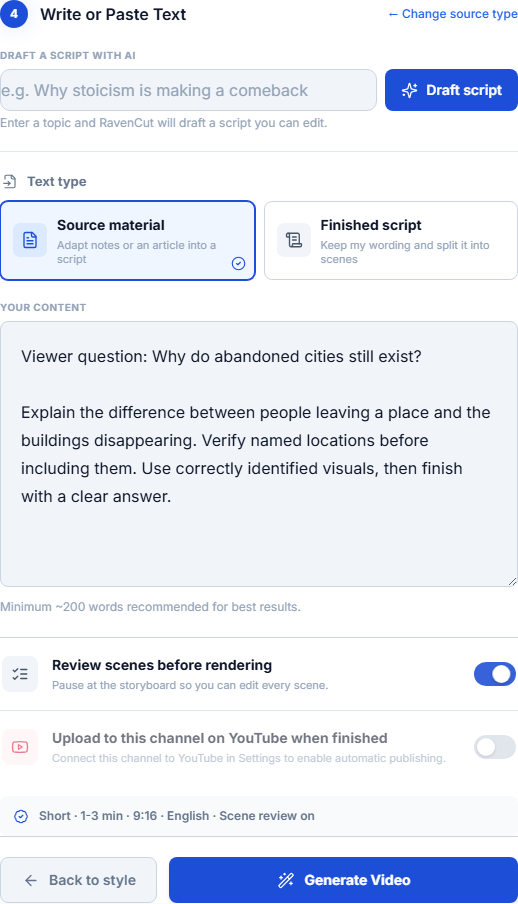
Actual RavenCut interface with demonstration content. For the workflow on this page, select Finished script rather than the Source material option shown in the screenshot.
Need to adapt an article before it becomes final narration? Read the practical blog-to-video workflow or the idea-to-upload guide.
Choose the audience, language, and video format
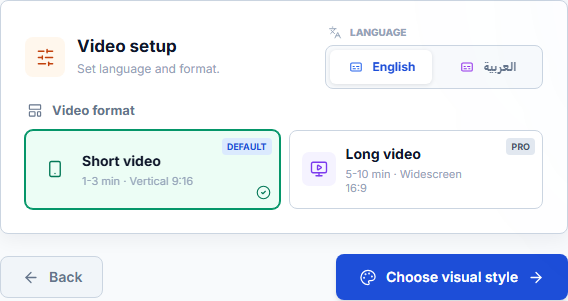
Start with the niche that matches the audience you want to address. A niche supplies context; it does not replace a specific script. Continue to Video setup, where the current interface offers English and Arabic, plus Short and Long formats.
| Current format | Orientation | A useful starting point |
|---|---|---|
| Short | Vertical 9:16 | One complete question, lesson, or distinction. |
| Long | Widescreen 16:9 | An explanation with supporting context and several worthwhile sections. |
The setup presents Shorts as a 1-3 minute range and Long videos as a 5-10 minute range. Long videos require a paid plan. Those ranges are not a guarantee that any pasted text will fit: spoken duration depends on narration and pacing, and input validation still applies. Do not stretch a weak idea with repetition to reach a longer format.
Choose a visual style that belongs with the story. An illustrated story may benefit from generated visuals; a factual location-based explainer needs careful checking of people, places, and supporting media. A visually attractive scene is not proof that it depicts the correct subject.
Walk through one original script and its visual purposes
Here is an original, illustrative script for a short desk-reset explanation. It is not a customer result, a generated output, or a performance claim. Its purpose is to show how narration can give visuals a useful job.
A desk reset is not about making your workspace look like a showroom. It is about making your next task easier to begin.

First, name the task you will do next. Keep the tools for that task within reach, and move unrelated items out of the working area.

Then remove the small interruptions: loose cables, yesterday's notes, and a screen full of tabs you no longer need.

Finally, leave one clear starting point. That might be an open document, a notebook with the next question, or the materials for your first step.

The test is simple: can you sit down and know what to do next?
The following breakdown is an editorial planning example, not a promise of an exact scene count or generated asset. RavenCut plans media around the script; check the actual scene review before rendering.
| Narration beat | Visual purpose | What to review |
|---|---|---|
| A reset makes the next task easier | Establish a recognizable working desk | Avoid luxury-office imagery that changes the point. |
| Name the next task and keep its tools nearby | Show a focused activity and relevant materials | The props should support the task being described. |
| Remove interruptions | Show the difference between clutter and a usable area | Do not add exaggerated before-and-after claims. |
| Leave a clear starting point | Support the document or notebook example | Check that text in the image is not distracting or misleading. |
| Can you know what to do next? | Return to the central question | The ending should complete the opening, not introduce a new topic. |
For a real existing output, watch RavenCut's Why Abandoned Cities Still Exist video, also included in the public examples. It is a separate project, not a render of the desk-reset script above. Judge the narration, visual relevance, captions, and pacing yourself; the example does not establish typical channel performance.
Enable scene review before you commit to the render
Switch on Review scenes before rendering when you want a pause to inspect the scene plan. Check the actual narration, the media associated with each scene, and the order of the explanation. The setting concerns review before rendering; it is not a separate approval after the exported video is complete.
Give every scene a relevance check:
- Does the visual support what the narrator is saying now?
- If a person, place, or organization is named, is the image correctly identified?
- Is a generated illustration being mistaken for documentary evidence?
- Does a long scene need a clearer visual purpose rather than more decorative movement?
- Are directions or notes accidentally included in the spoken text?
Write specific corrections. "This scene names Jordan but shows an unidentified foreign street" is actionable. "Make it more professional" does not identify what is wrong. Correct factual or identity problems before proceeding; neither stock matching nor AI generation can guarantee that the media is accurate.
Check the finished narration and captions
After rendering, watch the exported video, not only the script or storyboard. Listen for names, acronyms, awkward pauses, and sentences that sound incomplete. Check that captions match the spoken words, remain readable, and do not obscure the subject.
Watch once for meaning and once for presentation. In the first pass, ask whether a new viewer gets a complete answer. In the second, inspect scene movement, cuts, subtitle placement, and audio balance. Review in the intended orientation: a vertical Short can hide a visual detail that looked clear in a widescreen source.
A generated video may still need editorial changes. RavenCut assists production; it does not certify factual accuracy, originality, media rights, or suitability for monetization.
Download first or explicitly choose YouTube uploading
You do not need a YouTube connection to create and download a video. If you connect a channel, check the destination, visibility, and Upload to YouTube when finished option before generation.
If you want to inspect the completed MP4 before anything goes live, turn automatic uploading off. Scene review and final-video review are different checkpoints. After you have watched the output, choose whether to upload and select the intended visibility: Private, Unlisted, or Public.
The title should describe the explanation the video actually delivers. For the illustrative script above, "A Desk Reset That Makes Your Next Task Easier" is more faithful than a title promising an extraordinary productivity transformation. Check the thumbnail against the same promise.
Understand the current free and paid limits
RavenCut's Free plan includes one lifetime video, not a recurring free allocation. The current Free finished-script limit is 380 English words or 320 Arabic words, and Free accounts use the Short format. These limits apply to finished narration; source material is handled as a different input mode.
Paid plans allow Long video creation as well as Shorts, subject to the current plan, credit balance, and production limits. Read the current pricing and credit information instead of assuming that one credit means one complete video or that every format costs the same.
Start with a script that already works when read aloud. Generation should add production, not hide gaps in the explanation.
Script-to-video questions
Will RavenCut rewrite my finished script?
Finished script is designed to preserve spoken wording while dividing narration into scenes. Source material is the mode for adapting notes into a new script. Check the actual scene text, especially if your input mixes narration and production directions.
Are all visuals generated by AI?
Not necessarily. Media choices depend on the project, script, and supported sources. Stock and generated visuals serve different purposes. Review relevance and permissions rather than assuming that any available image is suitable for the story.
Do I have to publish the result?
No. You can download and review without connecting YouTube. If you choose automatic uploading, you are authorizing that production workflow to upload when finished; switch it off when you want final-video review first.
Does this guarantee a monetized channel?
No. RavenCut does not guarantee views, subscribers, monetization approval, or earnings. Bring your own perspective, verify the content and media, and use material you have the rights or permission to use. See the RavenCut terms for your responsibilities.